

Create a new Playbook
Open the Playbook Editor
Navigate to Playbooks from the main menu
Click the New Playbook button in the top-right corner
Pick your Editor Type
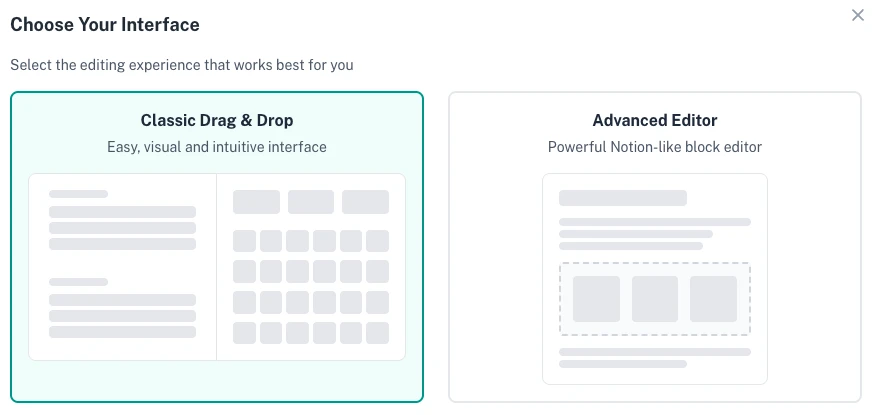
1. Classic Drag & Drop (Easy to use but less powerful)
ADDING PLAYS OR DRILLS
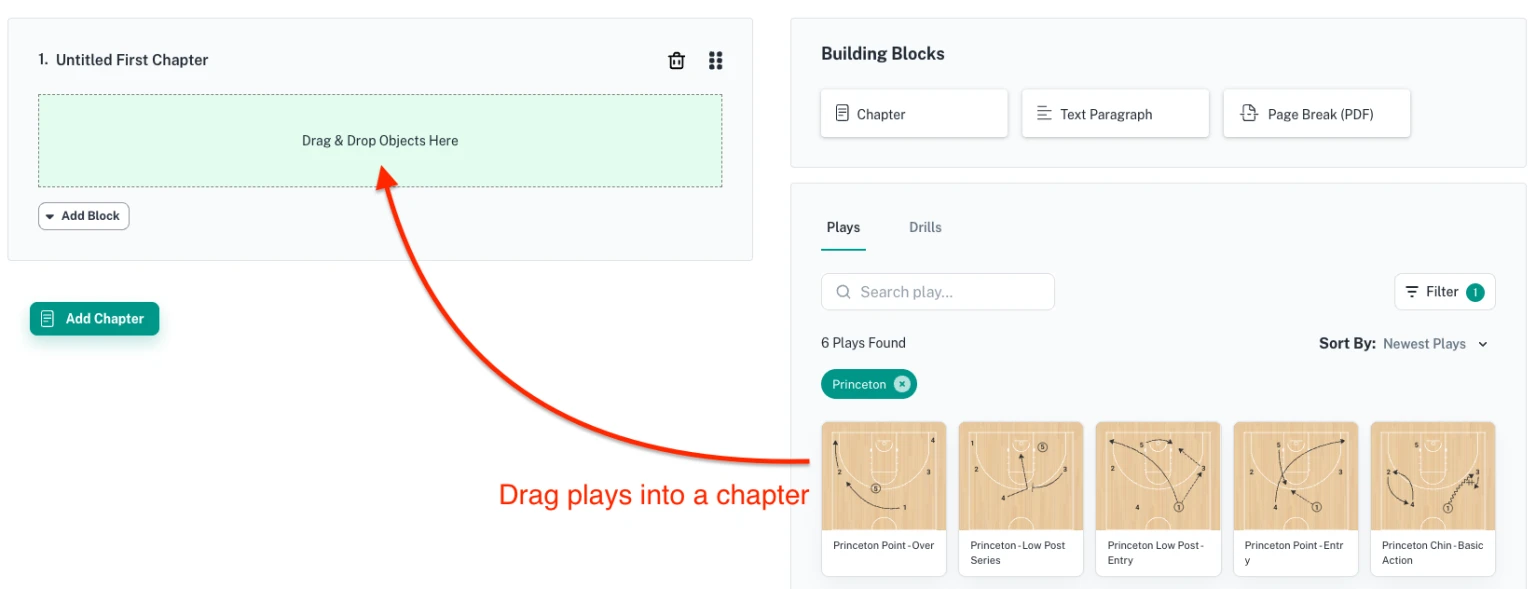
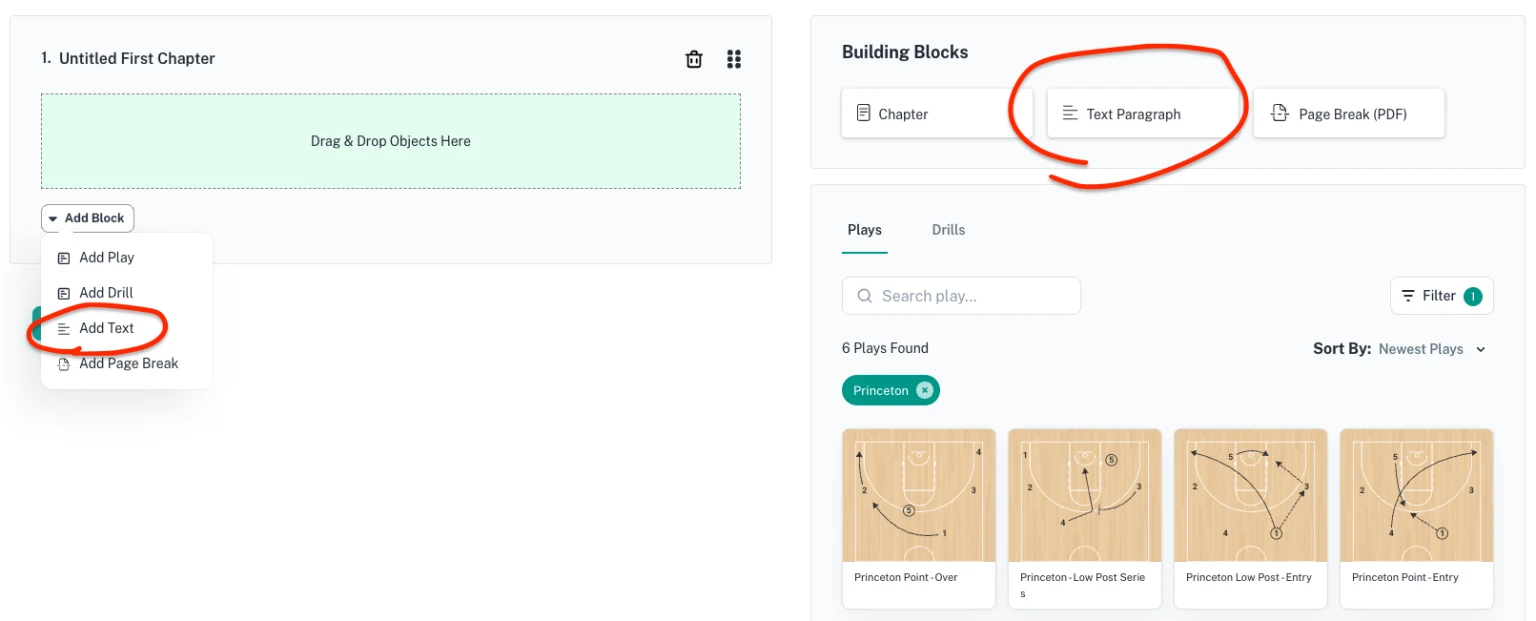
On Desktop you can drag plays or drills from the right side of the screen into
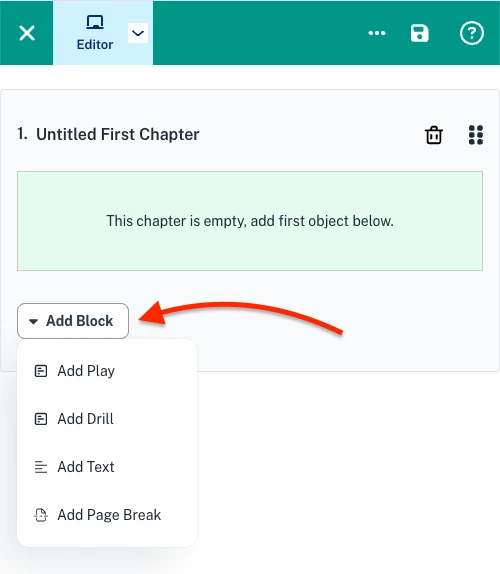
On Mobile click the "Add Block" dropdown button and select "Add play". You can then select as many plays as you want to add to the current chapter.
ADDING CHAPTERS
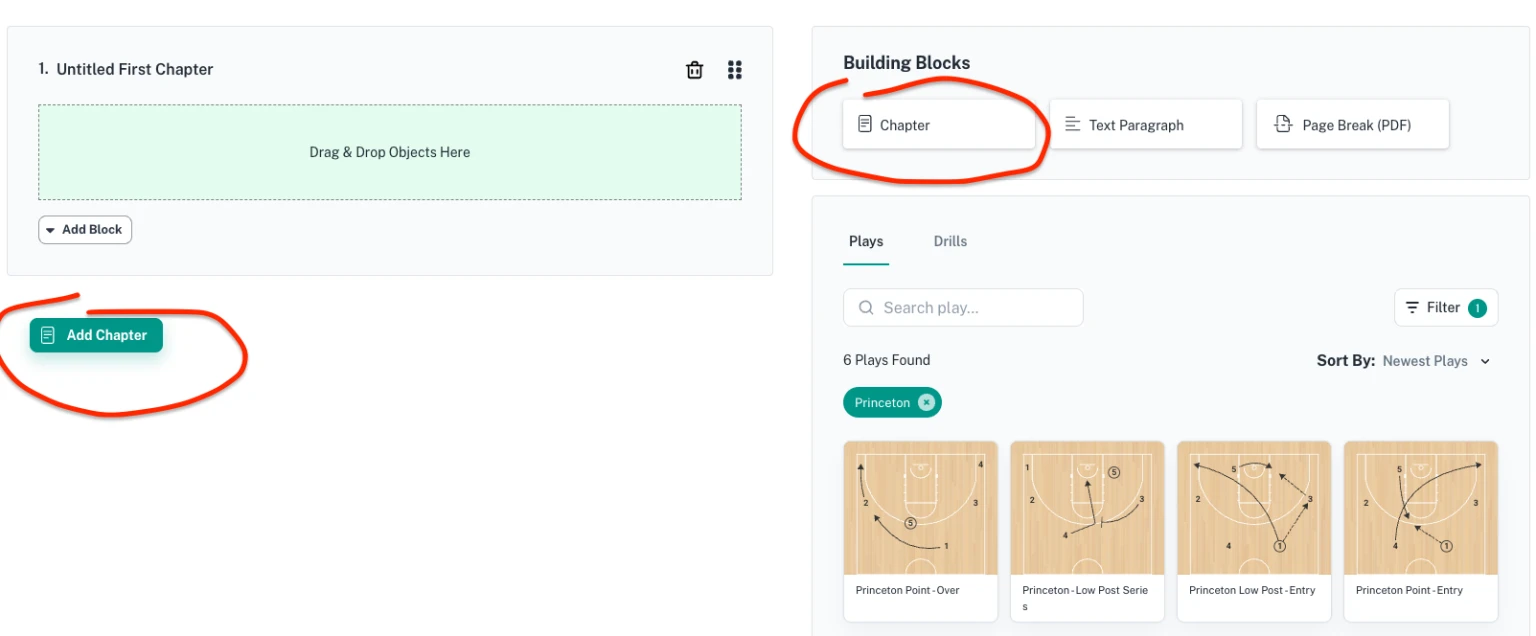
Classic playbooks are divided into chapters, you can add new chapters by.
You can add new chapters by clicking the "Add Chapter" button or dragging a new chapter from the "Building Blocks" section to where in the document you want it.
ADDING TEXT PARAGRAPHS
You can add text paragraphs to add additional explanations apart from the existing plays:
2. Advanced Editor
The advanced editor is a block editor similar to Notion that allows you to create fully customizable documents.
ADDING PLAYS
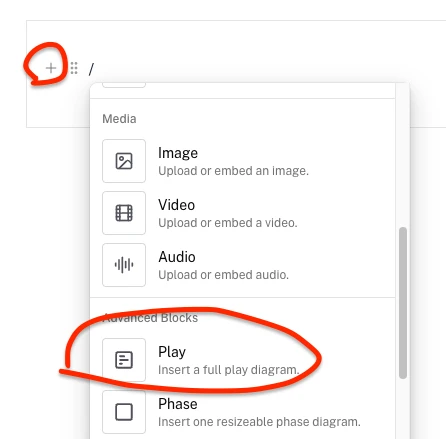
Open the block menu by either typing "/" or clicking the + icon when hovering over the editor.
Then select the "Play" block
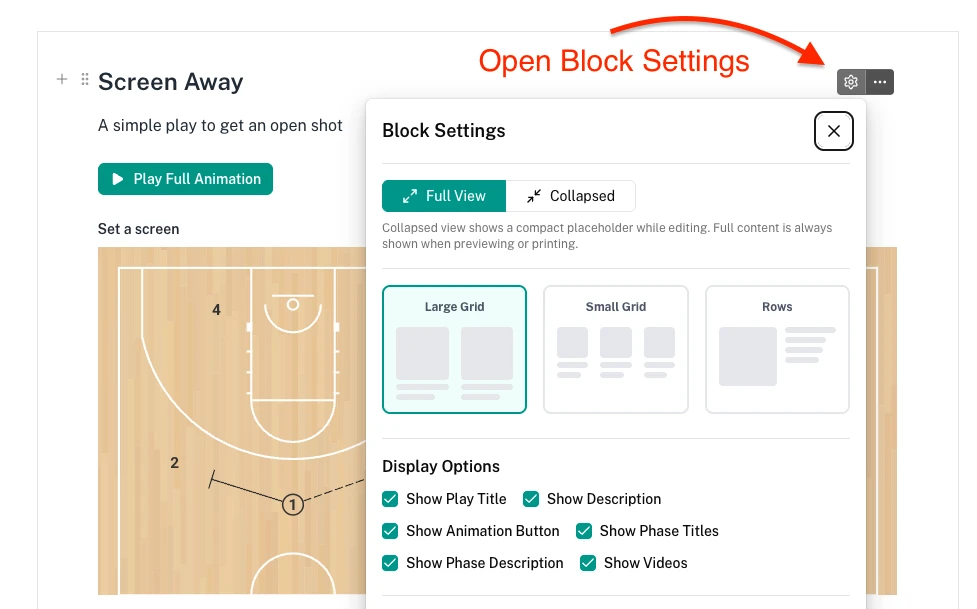
Once you have added a play you can customize the display settings:
You can add other blocks using the same way:
Basic Blocks:
Block | Description | Shortcut |
|---|---|---|
Text | Plain text paragraph for regular content | - |
Heading 1 | Large section heading for major chapters | Cmd/Ctrl + Alt + 1 |
Heading 2 | Medium section heading for sub-sections | Cmd/Ctrl + Alt + 2 |
Heading 3 | Small section heading for minor sections | Cmd/Ctrl + Alt + 3 |
Bulleted List | Create an unordered list with bullet points | Type - then space |
Numbered List | Create an ordered list with numbers | Type 1. then space |
Divider | Insert a horizontal line to separate content | - |
Page Break | Force a new page when printing to PDF | - |
Table | Create a table for organizing data in rows and columns | - |
Media Blocks
Block | Description |
|---|---|
Image | Upload an image or embed one from a URL |
Video | Upload a video or embed from YouTube/Vimeo |
Audio | Upload or embed an audio file |
Advanced Blocks
Block | Description |
|---|---|
Play | Insert a full play diagram from your play library with all phases |
Phase | Insert a single resizable phase diagram from your library |
Columns | Split content into multiple columns side-by-side |
Table of Contents | Auto-generate a table of contents based on your headings |
