
Mirror Plays (Left Side to Right Side)
Mirroring flips your play horizontally, which is useful when you want to show the same play running to the opposite side of the court.
There are two types of mirroring:
View-only mirroring: Flips the display without changing anything
Permanent mirroring: Actually changes your play data
View-only mirroring (temporary)
Sometimes you just want to see what a play looks like from the other side without actually changing it.
While Viewing or Animating:
Open the play in the viewer or start the animation
Look for the flip icon in the animation controls (timeline bar)
Tap/click the icon to toggle mirroring on or off
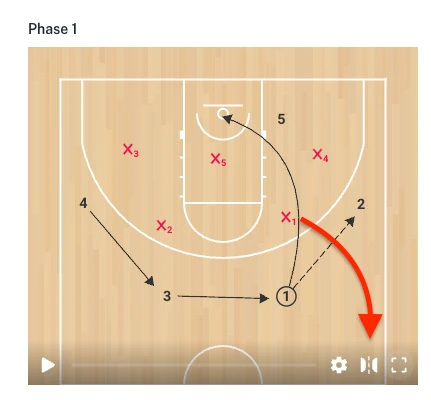
The icon turns red when mirroring is active. Your play data stays unchanged.
When Printing:
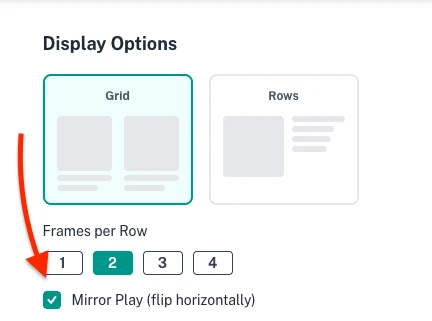
Open the print settings for your play
Check "Mirror Play (flip horizontally)"
Your printed output will be flipped, but the original play remains unchanged
Permanently Mirroring a Phase
Use this when you want to flip all the players, movements, and objects in a phase to the other side of the court. This changes your play data.
On Desktop:
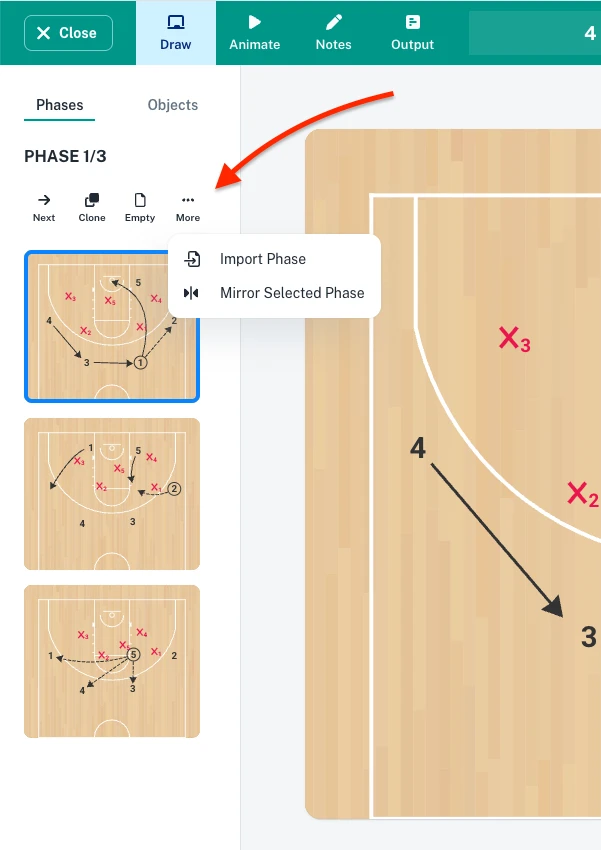
From the Phase Menu:
In the phase sidebar, click the three-dot menu next to the phase you want to mirror
Select "Mirror Selected Phase"
Right-Click on the Court:
Right-click on an empty area of the court
Select "Mirror Phase"
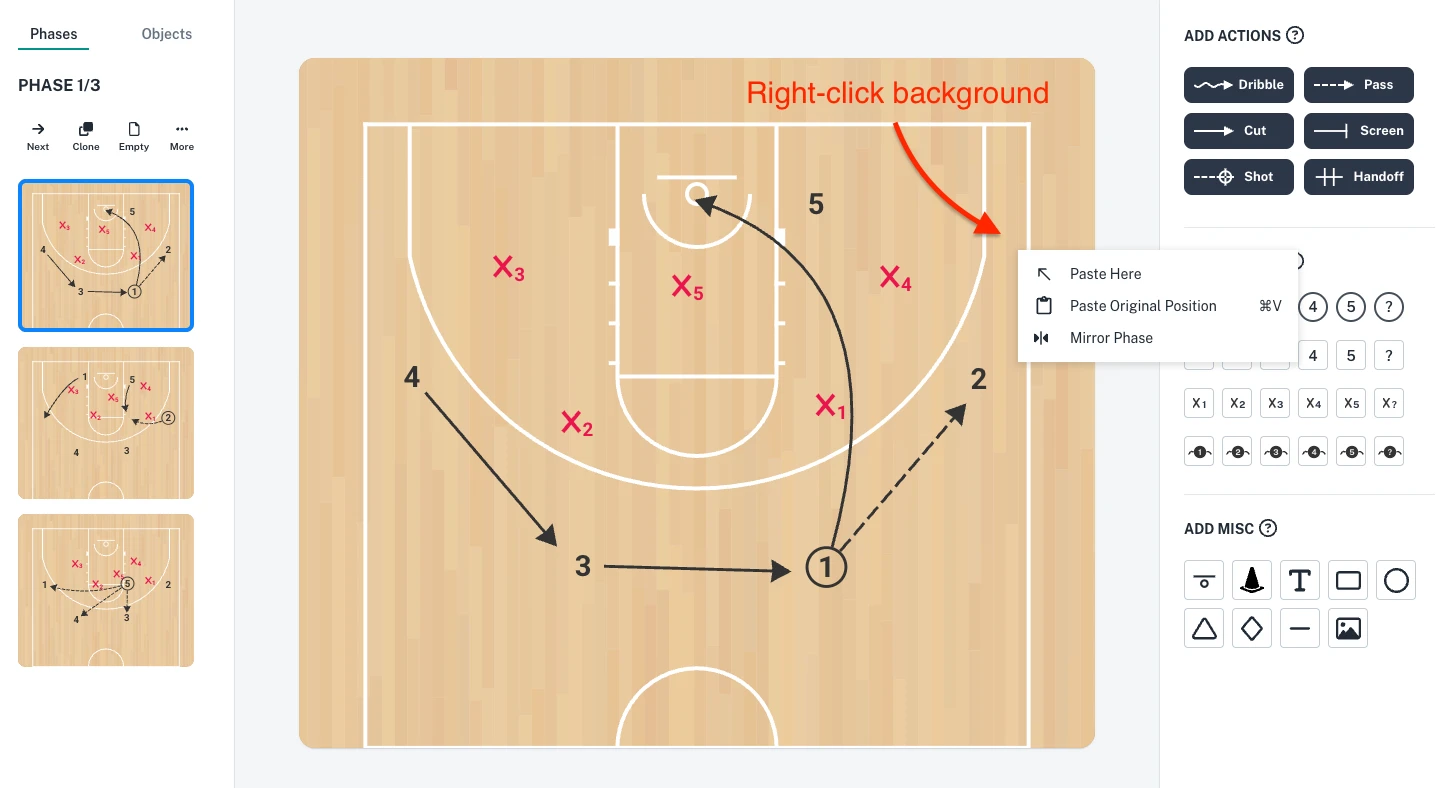
On Mobile:
From the Phase Picker Menu:
Tap the three-dot menu in the phase picker toolbar
Tap "Mirror"
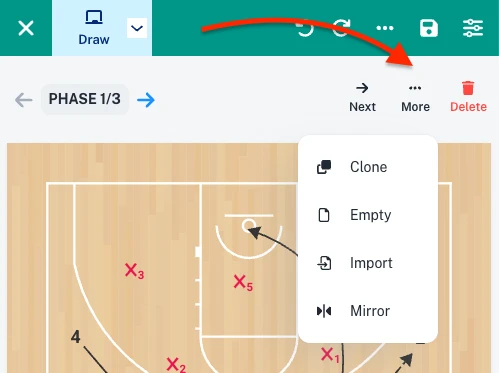
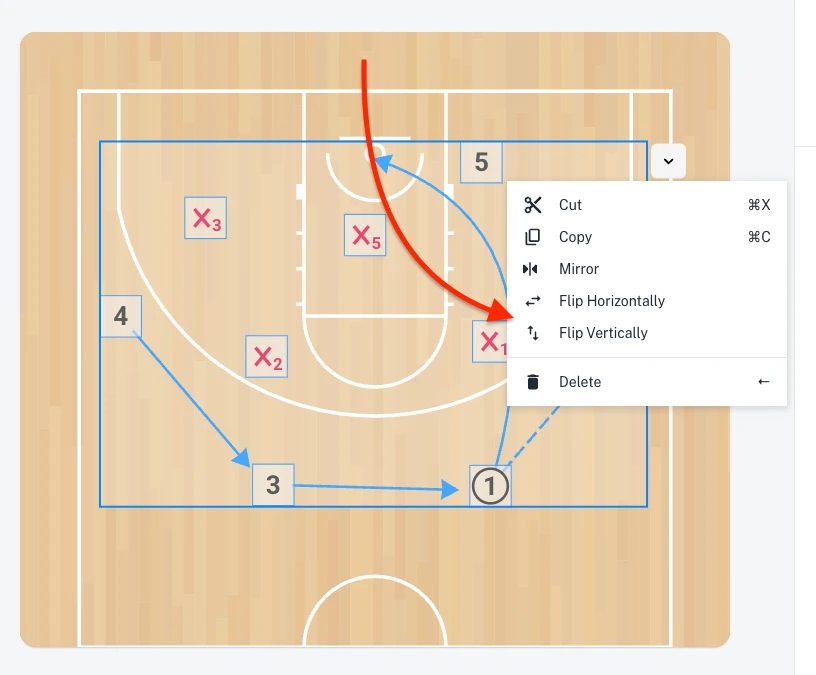
MIRROR ONLY SELECTED OBJECTS
If you only want to flip specific players or objects (not the entire phase):
Select the objects you want to mirror
Right-click on your selection
Select "Mirror"
This creates mirrored copies of just the selected items.